Sharing Presets, Fonts, and Brand Images with Your Team
Share overlay presets, custom fonts, and brand images with your whole team — who can share, how the My/Team tabs work, and how teammates copy and use shared assets.
Once your account is part of a team, the Overlay Library and the font and brand-image managers inside the editors split into My and Team tabs. Anything an owner or admin shares appears in every teammate’s Team tab — build the brand kit once, and the whole team exports with the same look.
Who can share
Sharing and unsharing is owner and admin only, and only for assets they own themselves. Members can browse and use everything in the Team tab, but they can’t share their own assets with the team.
Sharing presets
In the Overlay Library (at aspectr.app/overlays), open the kebab menu on one of your own preset cards and choose Share with team. The preset appears in every member’s Team tab with a Team badge; choose Stop sharing from the same menu to take it back.
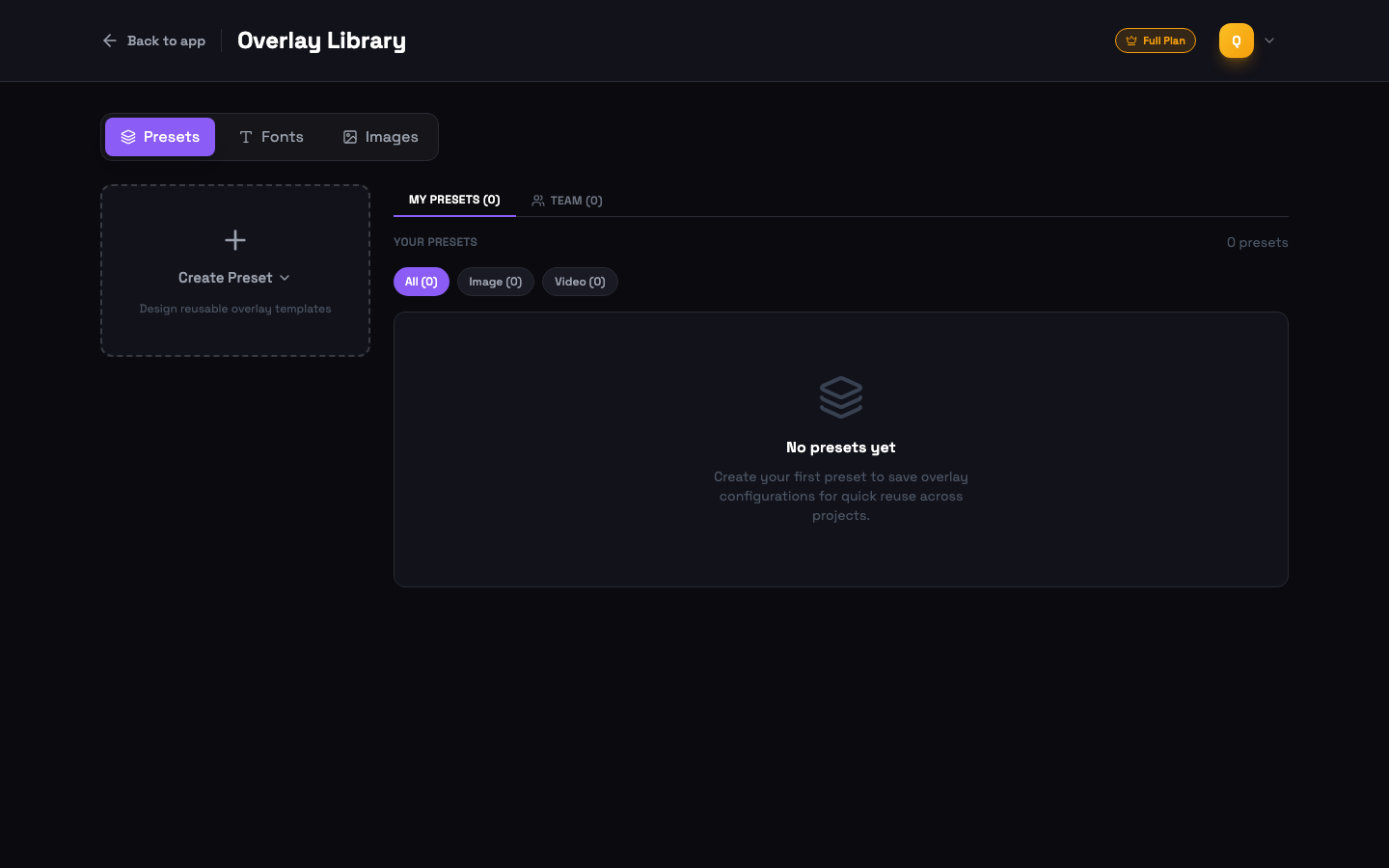
The Team tab for presets is browse-only: teammates can’t edit a shared preset directly. Instead they use Copy to My Presets to get an editable, independent copy — later changes to the original don’t affect copies, and stopping sharing doesn’t remove copies teammates already made.
Sharing fonts — and team defaults
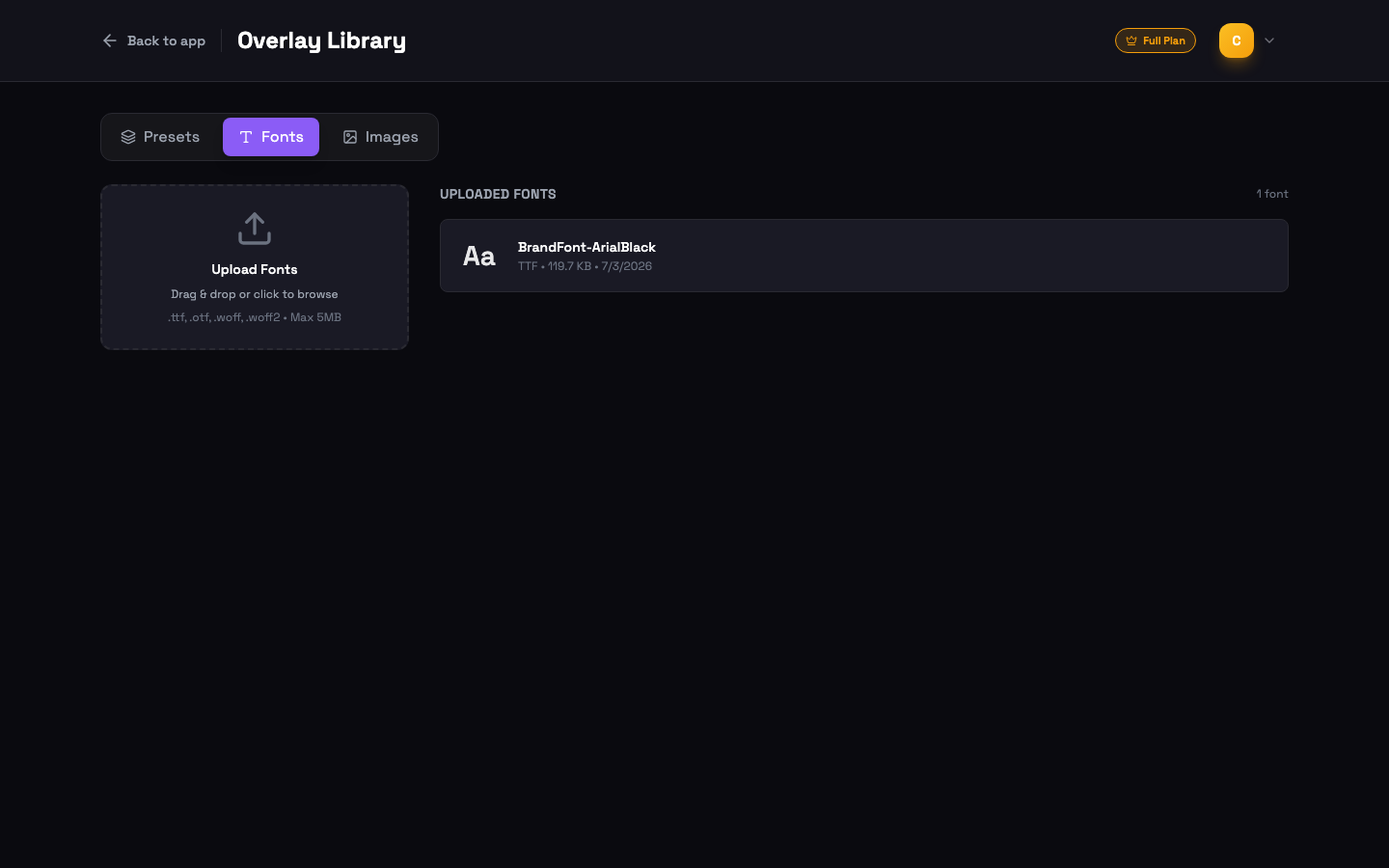
Fonts use the same My / Team tabs and share toggles in the font manager inside the preset and video overlay editors. Two default-font levels exist:
- Personal default — star a font on your My tab; every new text layer you create starts with it.
- Team default — owners and admins can star a shared font on the Team tab, which applies to teammates who haven’t set a personal default.
The fallback chain for new text layers is: your personal default → team default → system font.
Sharing brand images
Brand images (logos, badges, product shots) work exactly the same way: My / Team tabs and share toggles in the image manager inside the editors. Share the logo once and every teammate places the same file — no more three slightly different logo versions across one campaign.
Where everything lives
| Asset | Where to manage it |
|---|---|
| Presets | The Overlay Library at aspectr.app/overlays |
| Fonts | The font upload manager inside the preset editor and video overlay editor |
| Brand images | The image upload manager inside the preset editor and video overlay editor |
Not on a team yet? The Team Accounts guide walks through creating one and inviting your teammates.
Common questions
No. Sharing and unsharing is reserved for the team owner and admins, and they can only share assets they own themselves. Members can browse and use everything in the Team tab, but their own uploads stay private.
No. "Stop sharing" removes the preset from the Team tab, but any copies teammates made with "Copy to My Presets" are fully independent and stay in their libraries.
Not directly — the Team tab is browse-only. Teammates use "Copy to My Presets" to get an editable, independent copy. Later changes to your original never affect their copies, and their edits never sync back to yours.
Your personal default font wins. The fallback chain for new text layers is: your personal default, then the team default, then the system font.