The Overlay Library: Presets, Fonts, and Brand Images
Manage reusable overlay presets, upload brand fonts and logos, and share assets with your team.
The Overlay Library (reachable from the app header, or directly at aspectr.app/overlays) is home to everything you brand your exports with: overlay Presets, custom Fonts, and reusable Images like logos. Build assets once, apply them across every campaign.
Presets tab
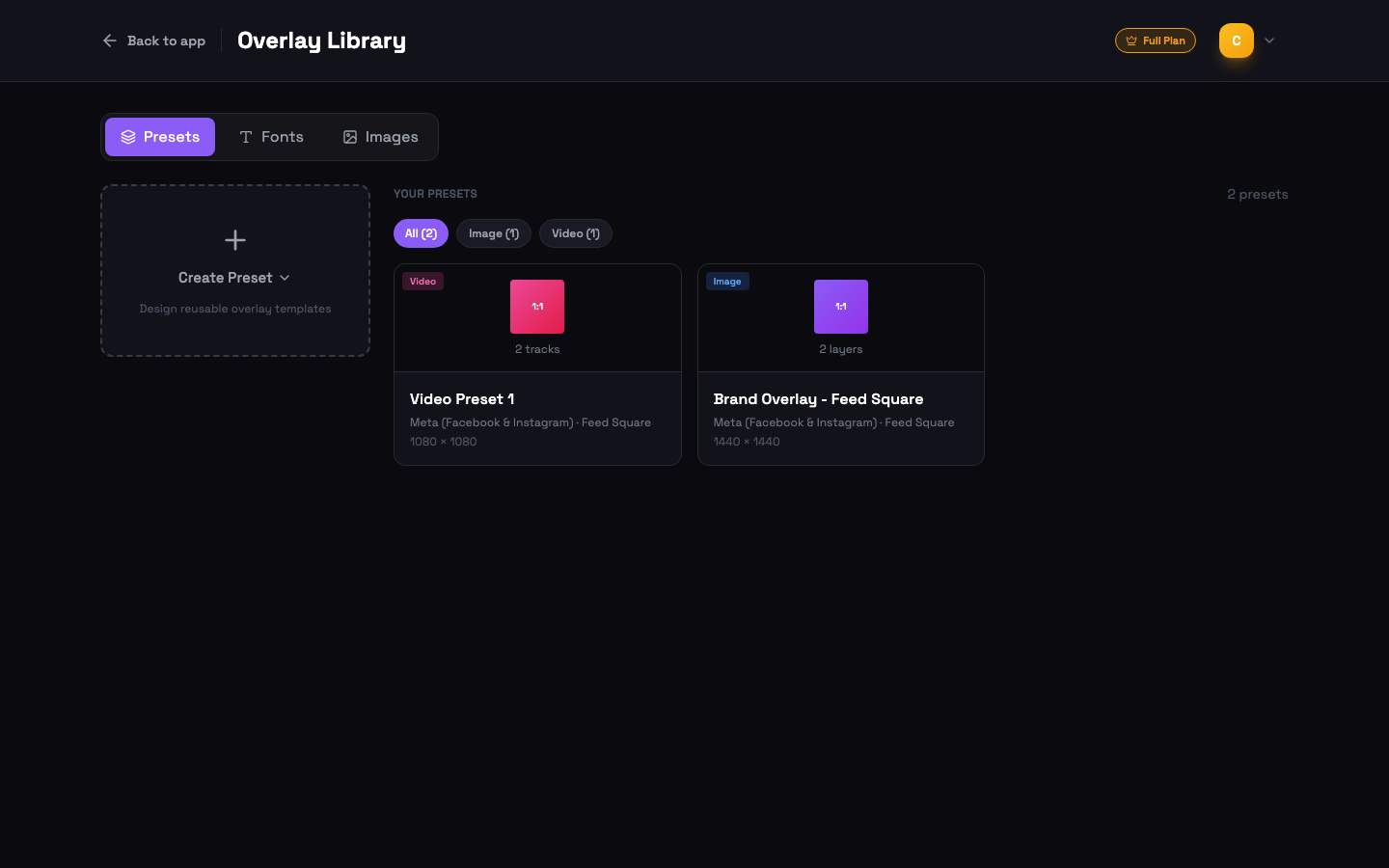
A preset is a saved overlay design — text, logos, shapes, and (for video) their timing — bound to a specific format. Cards show the preset type (blue Image / pink Video badge), aspect ratio, layer or track count, and target platform and format. Filter pills narrow the grid to image or video presets.
Creating a preset
Click Create Preset and choose Image Preset (static overlay) or Video Preset (timeline-based overlay with timing). Because overlays are designed at real pixel dimensions, you pick the target platform and format first:
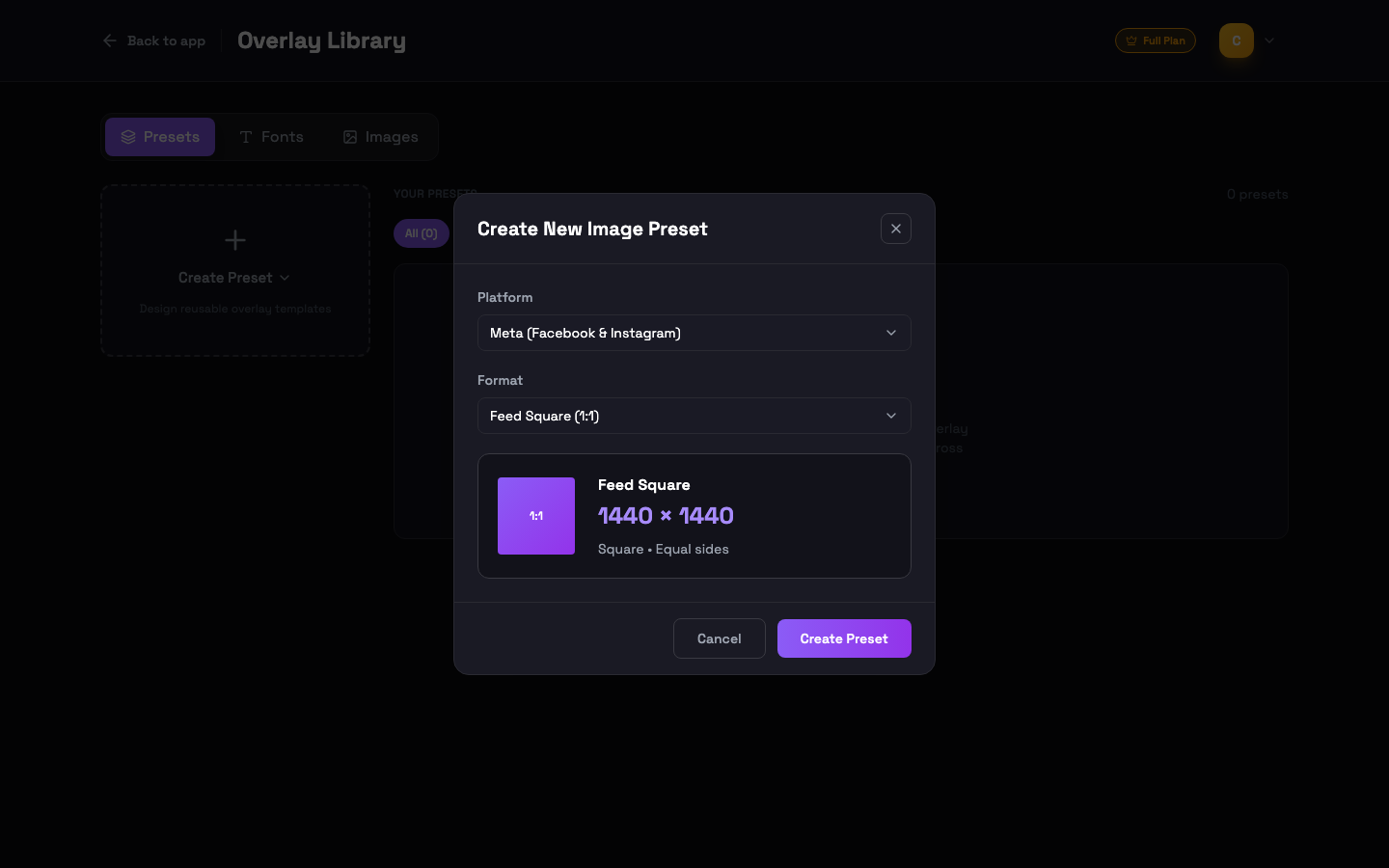
This opens the matching editor — see the image overlay editor and video overlay editor guides.
Card actions
- Edit — reopen the preset in its editor (or just click the card).
- Duplicate — copy the preset to a different format. Layers are automatically repositioned and scaled proportionally for the new dimensions, then you fine-tune. This is the fastest way to adapt one design to a whole campaign.
- Rename — inline, Enter to save.
- Share with team / Stop sharing — team owners and admins only.
- Delete — two-step confirm, permanent.
Fonts tab
Upload brand fonts once and use them in every overlay. Drag & drop .ttf, .otf, .woff, or .woff2 files (max 5 MB each). Each row previews the font and shows its format, size, and upload date.
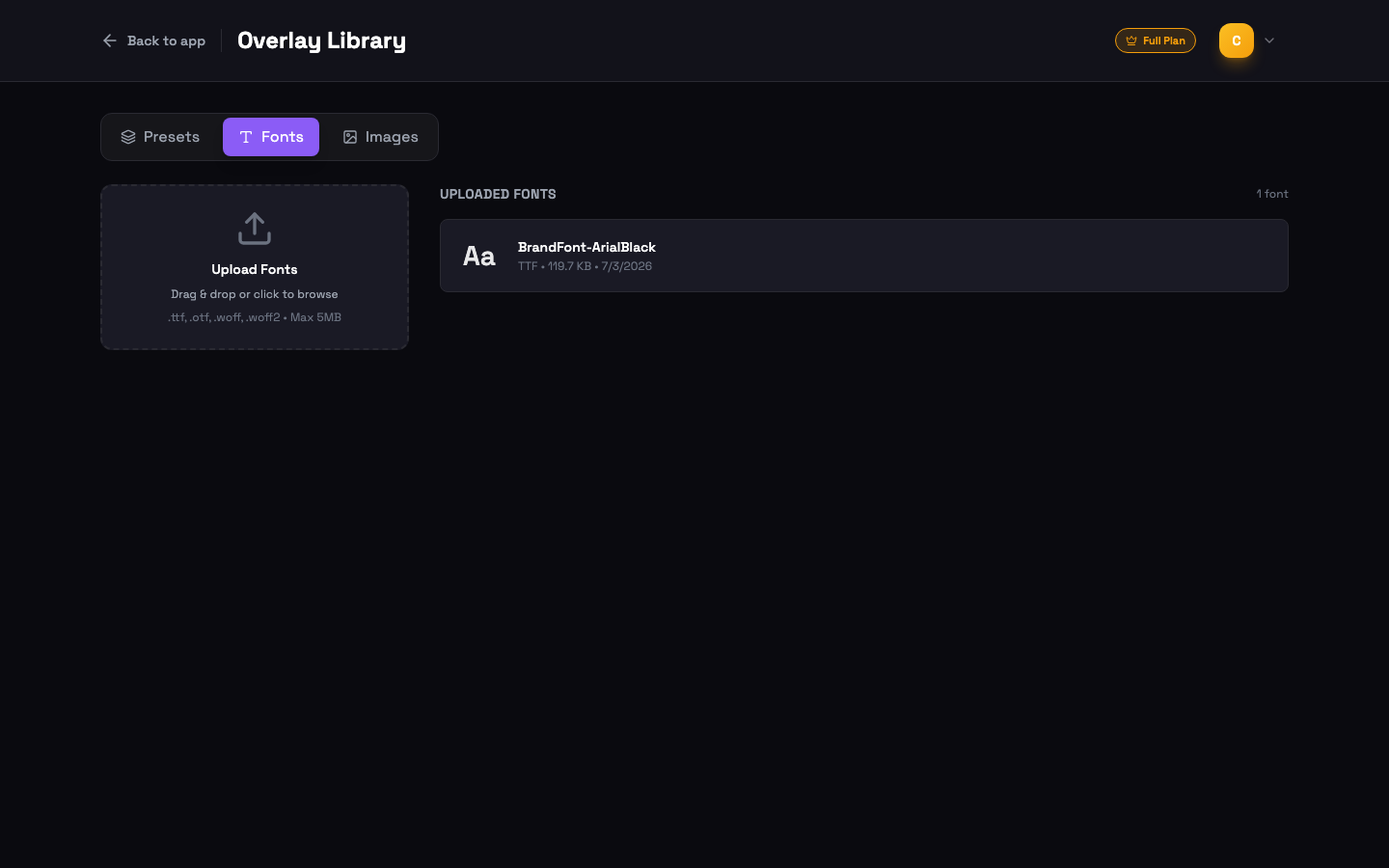
Right-click a font to set it as your default — every new text layer starts with it. On team accounts, owners/admins can also mark a shared font as the team default (amber star), which applies to teammates without a personal default.
Images tab
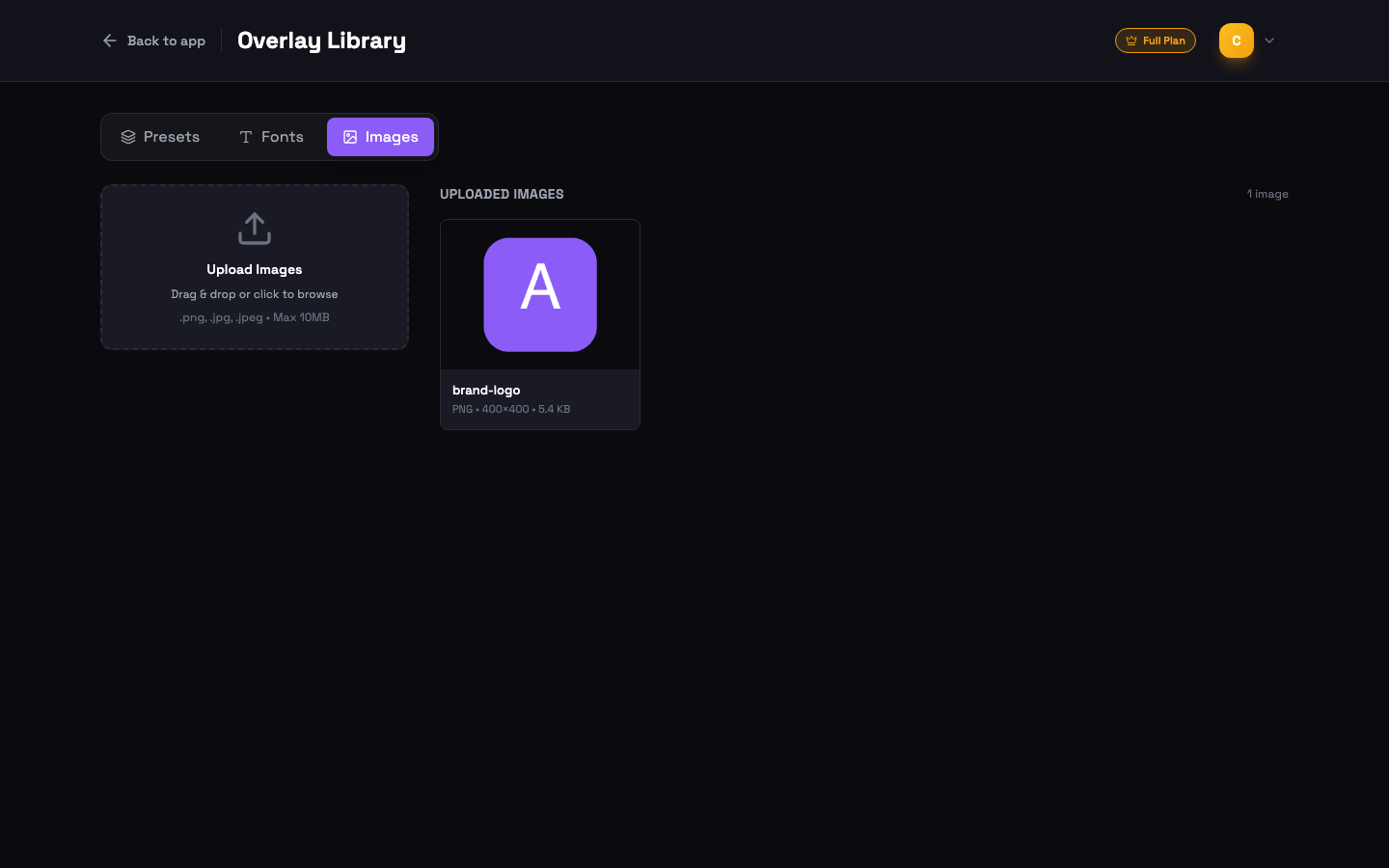
Store logos, badges, product shots — any image you place on top of exports. Upload .png or .jpg/.jpeg up to 10 MB; transparent PNG works best for logos. These assets are available in both editors via the image layer's picker.
Team sharing
On a team account the library splits into My and Team tabs. Sharing rules at a glance:
| Action | Who | Effect |
|---|---|---|
| Share preset / font / image | Owner & admins, own assets only | Asset appears in every member’s Team tab with a cyan badge |
| Copy to My Presets | Any member | Creates an independent copy in your own library — edits never sync back |
| Set team default font | Owner & admins, shared fonts only | New text layers default to it for members without a personal default |
| Stop sharing | Owner & admins | Removes the asset from the Team tab (copies teammates made are unaffected) |
Common questions
The free trial includes 3 overlay presets. Both paid plans (Image Plan and Full Plan) have unlimited presets. Shared team presets never count against your personal limit.
TTF, OTF, WOFF, and WOFF2, up to 5 MB per font. Uploaded fonts appear as "Your Fonts" at the top of the font picker in both overlay editors.
PNG and JPG/JPEG up to 10 MB. PNG with transparency is ideal for logos. SVG is not supported.
Right-click a font and set it as your default: every new text layer in both editors starts with it. Team owners and admins can additionally set a team default font on a shared font, which applies to members who have no personal default.
On a team account, owners and admins can share presets, fonts, and images with the team. Teammates browse shared presets under the Team tab and copy them into their own library with one click — the copy is fully independent.