Extract Still Images from a Video
Pull the perfect frame from any video and export it as image ads, thumbnails, or banners — a different frame for every format if you want.
A video shoot is also a photo shoot — you just haven't picked the stills yet. Frame extraction lets you scrub through any uploaded video, choose the perfect moment, and export it as image ads, thumbnails, or banners in every size you need. No screenshots, no detour through an editor.
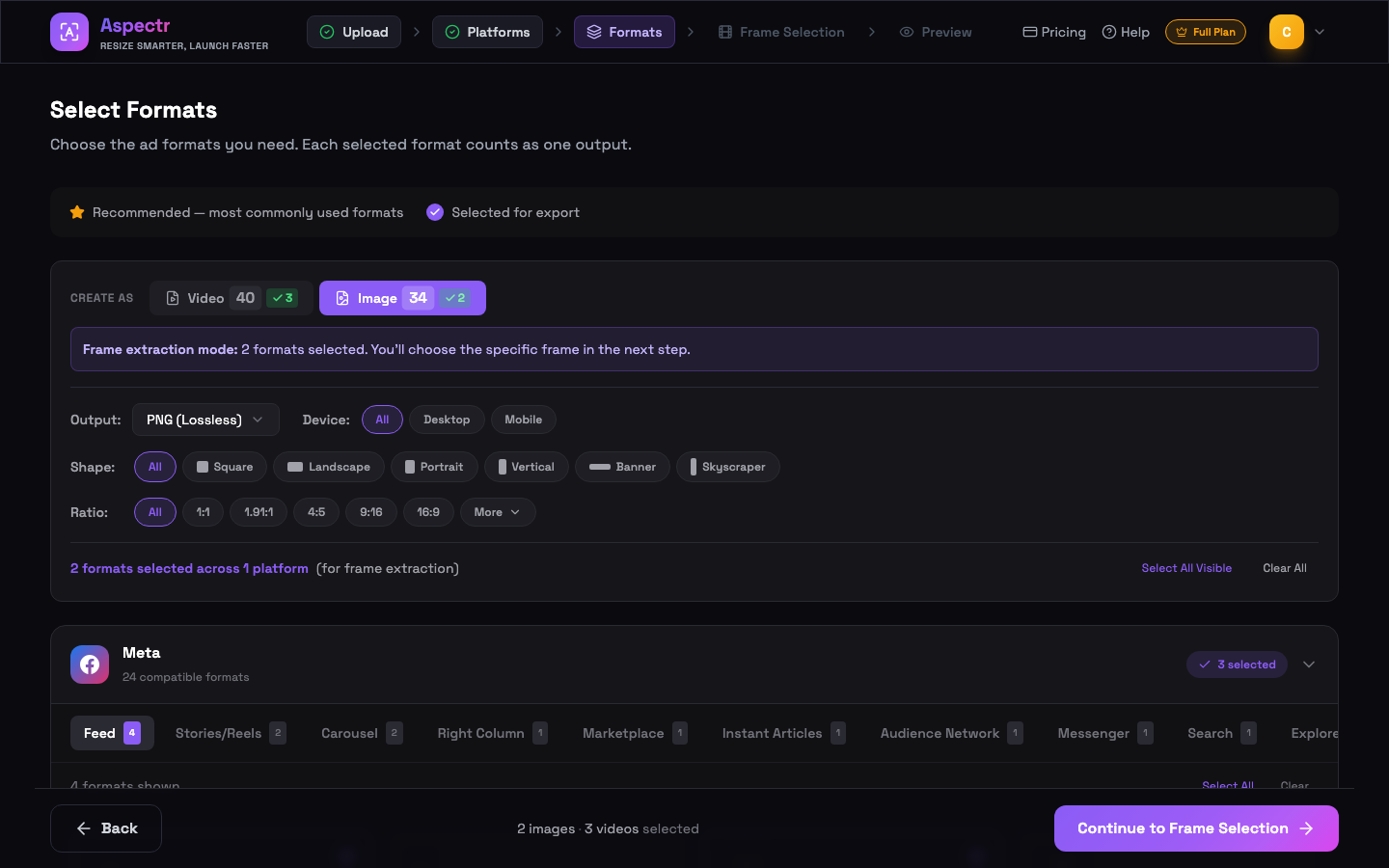
Turn it on: Create As → Image
Upload a video and continue to the format step. Switch the CREATE AS toggle to Image and select the image formats you want to create from your video — feed squares, landscape banners, YouTube thumbnails, anything. The banner confirms: "Frame extraction mode: N formats selected. You'll choose the specific frame in the next step."
Pick the frame — per format
A dedicated Frame Selection step appears between Formats and Preview. For each image format you can choose its own frame and position its own crop:
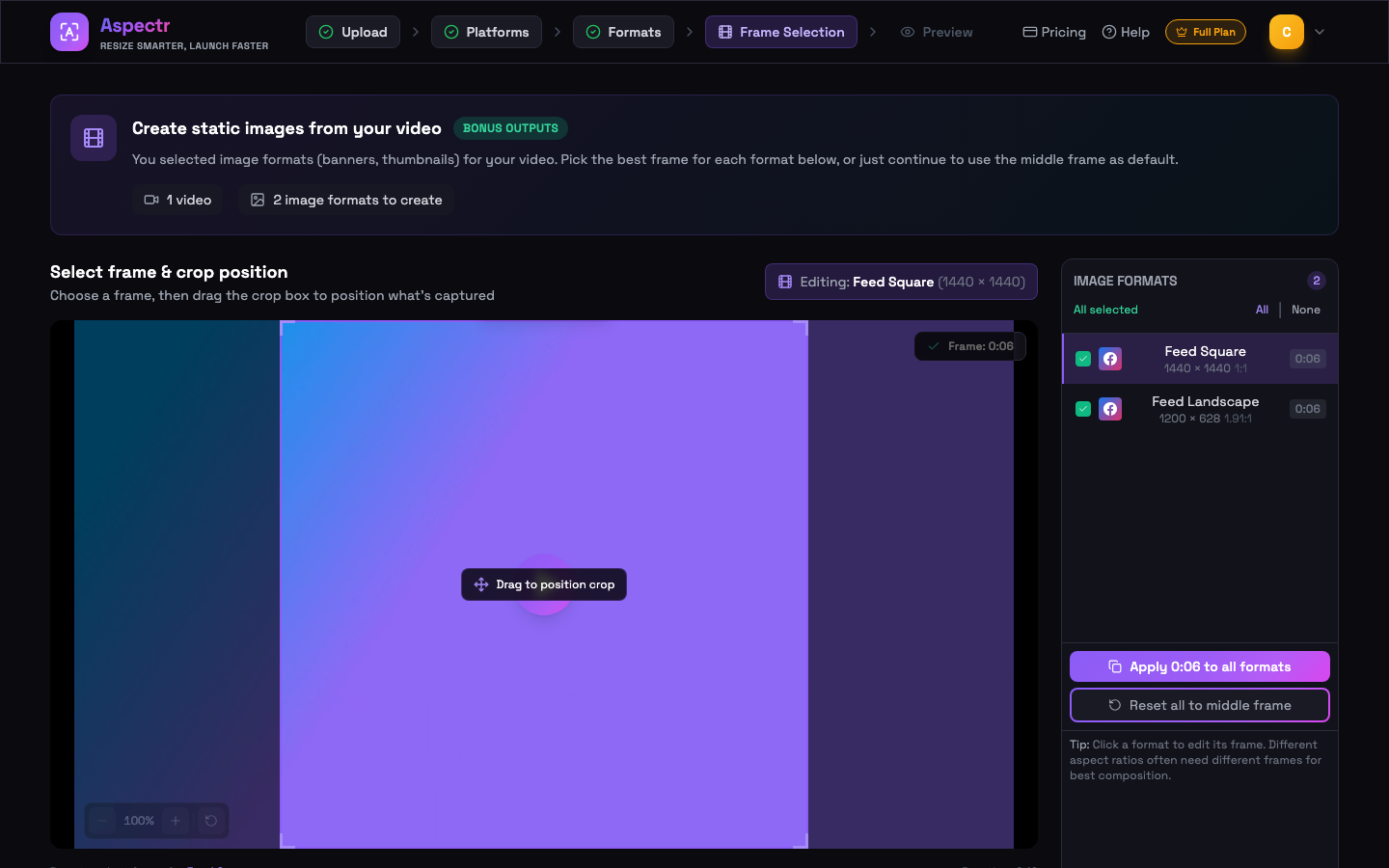
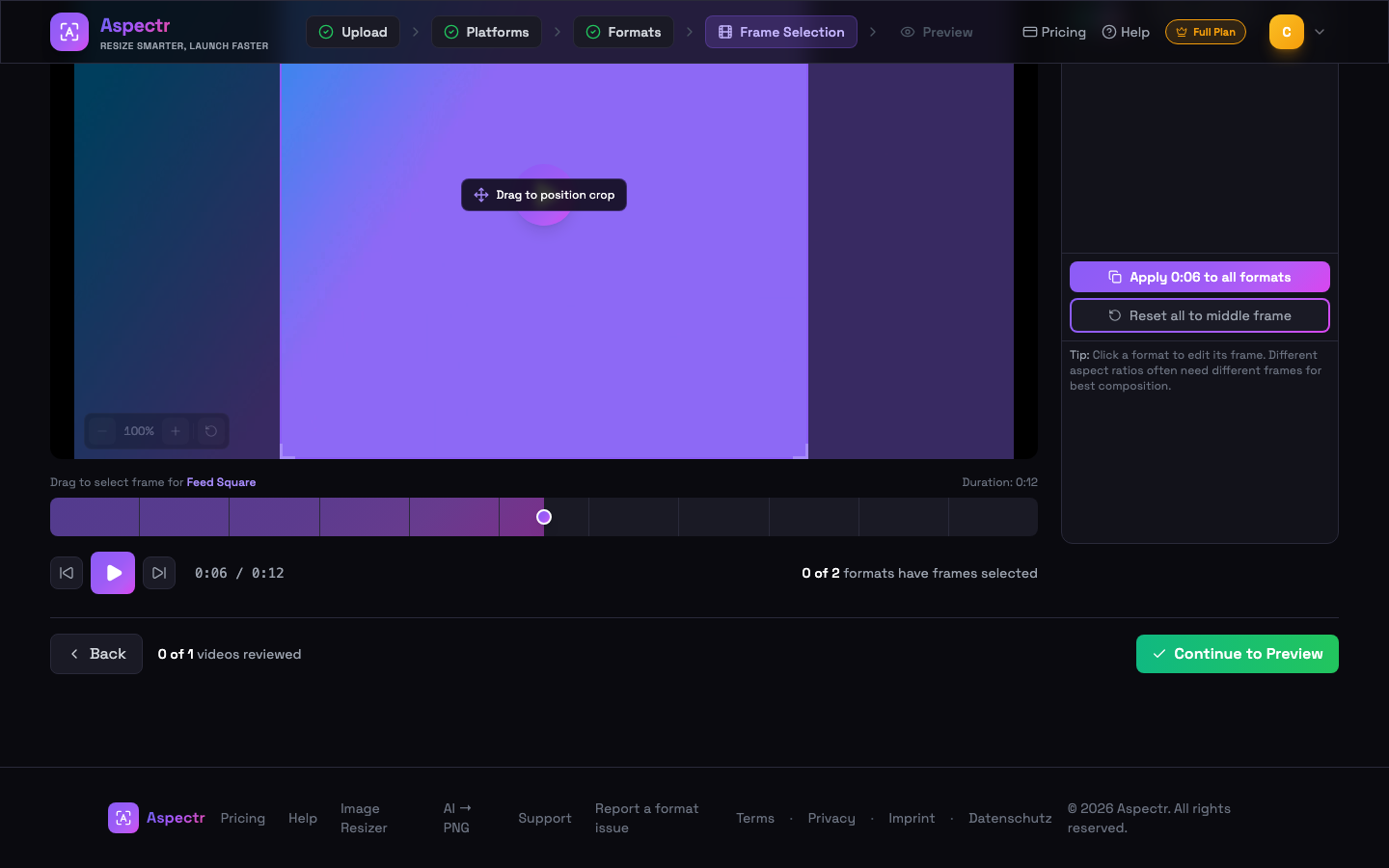
- Scrub the timeline below the player (or use the ±5-second skip buttons) until you find the right moment. Frames default to the middle of the video.
- Drag the crop box to position what's captured — it's locked to the target format's aspect ratio, with zoom and a Center reset.
- Click the next format in the list and repeat, or hit Apply to all formats to reuse the current timestamp everywhere. Different aspect ratios often benefit from different frames.
Preview and export
Extracted frames appear in the preview sidebar under FROM VIDEO with their timestamps. From here they behave exactly like uploaded images: adjust the crop, apply image overlays, and uncheck any you don't need. On export they're rendered as PNG or JPG at the format's full resolution and packaged into the same ZIP as your other outputs, sorted by platform.
- Great for video thumbnails that match the creative exactly.
- Turn a single hero video into a complete static campaign — feed, display, and banner sizes from one source.
- Extracted frames are image outputs — unlimited on paid plans (on the trial they draw from the image allowance, not video minutes).
Common questions
Yes. Every image format keeps its own frame timestamp and crop position. A 1:1 feed ad can use a different moment of the video than a 1.91:1 banner. Use "Apply to all formats" to copy one timestamp everywhere.
Every format defaults to the middle frame of the video. You can continue straight to preview and the middle frame is used.
Extracted frames are exported like any image — PNG, JPG, or both, depending on your output setting — and land in the same platform-organized ZIP as the rest of your batch.
No. Extracted frames are image outputs — unlimited on both paid plans. On the free trial they draw from the 100-image allowance, not the 10 video minutes.
Yes. Extracted frames behave like images in the preview step, so you can apply image overlay presets — logo, text, CTA — before export.