Team Accounts: Create a Team, Invite Teammates, Roles & Permissions
Set up a team on any paid plan: create it from Account Settings, fill up to 20 seats, and understand what Owners, Admins, and Members can each do.
A team account lets your whole marketing team work from one Aspectr subscription: shared overlay presets, shared brand fonts and logos, and one place to manage who has access. This guide covers creating a team, inviting teammates, and what each role — Owner, Admin, Member — can do.
Create a team
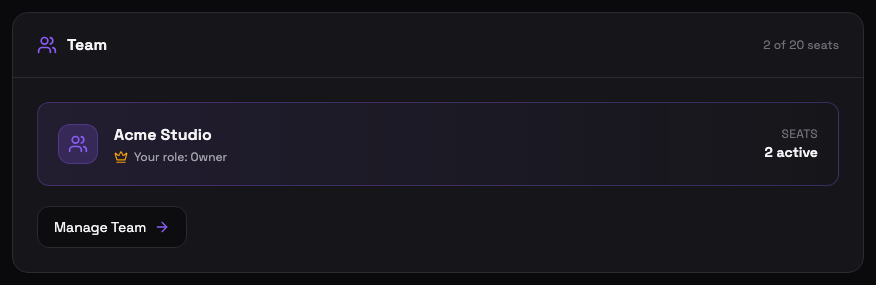
Teams are available on both paid plans — the Image Plan and the Full Plan — but not during the free trial. To create one, open Account Settings and find the Team card:
- Pick a team name (2–100 characters) — usually your company or department name. The owner can rename it later.
- You become the Owner the moment the team is created, and your account takes the first of up to 20 seats.
Roles and permissions
Every team member has one of three roles. The short version: the Owner controls the team and the billing, Admins manage the roster, Members use the shared assets.
| Role | What they can do |
|---|---|
| Owner | Everything Admins can do, plus: rename the team, appoint and remove Admins, and manage billing for everyone. There is exactly one Owner — the person who created the team. |
| Admin | Invite and remove Members, change Member roles, and share team assets. Admins cannot modify the Owner or other Admins, and can only invite people with the Member role — only the Owner grants Admin. |
| Member | Uses everything shared with the team while keeping a private library of their own. Members cannot manage the roster. |
Invite teammates
Inviting happens on the /team management page (Owner and Admins only): enter the teammate’s email address, pick a role, and send. What happens next depends on whether they already use Aspectr:
- They already have an Aspectr account — they are added instantly (you’ll see “was added to your team”), with no email step, and their account inherits the team’s plan tier immediately.
- They don’t have an account yet — they receive an email invite and show up in your roster as Pending. Clicking the link signs them up and lands them in their Settings page as a team member.

Invites can fail for a few predictable reasons:
- The person is already a member of your team.
- An invite to that email is already pending.
- You tried to invite yourself.
- They belong to a different team — one team per user, so they must leave it first.
- The seat limit is reached — remove a member to free a seat, or contact support@aspectr.app for a larger team.
The team management page
Owners and Admins get a dedicated /team page for day-to-day management:
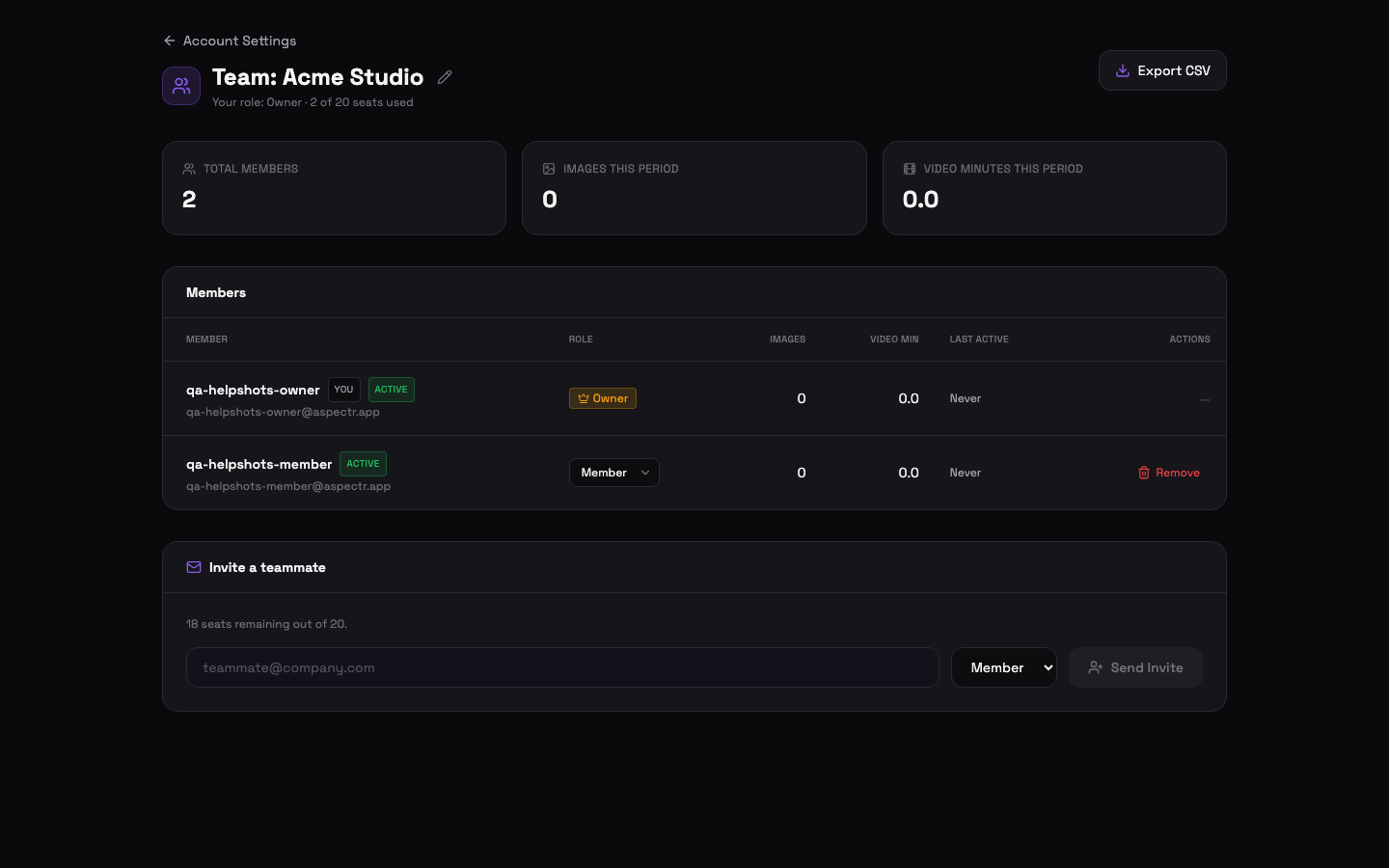
- Member roster with usage — images processed this period, video minutes used, and last-active date for every member.
- Role dropdowns and remove buttons — change a member’s role or remove them, within your own role’s permissions.
- Team rename — Owner only, via the pencil icon next to the team name.
- Seat counter — active members plus pending invites against your seat limit.
- Export CSV — download the team’s activity as a spreadsheet.
Removing a member
Removing someone frees their seat but doesn’t destroy any work: their private assets stay with them, shared assets remain at the team level, and you can re-invite them later.
Billing on a team
The Owner manages the subscription for everyone. Team members see a read-only Team Plan card in their own Settings — billing, payment methods, and invoices live with the Owner. See the Account Settings guide for how the billing surfaces work, and the Team Asset Sharing guide for what your team can do together once everyone is in.
Common questions
Teams include up to 20 seats on both paid plans (the owner counts as one seat, and pending invites reserve a seat). Need more? Remove a member to free a seat, or contact support@aspectr.app for a larger team.
No. When someone joins your team, their account inherits the team’s plan tier immediately — the team owner’s subscription covers everyone. Members see a read-only "Team Plan" card in their own Settings instead of billing controls.
No. Admins can only invite people as Members and can only manage Members — they cannot modify the owner or other admins. Only the team owner can grant or remove the Admin role.
Their private assets stay with them, and anything that was shared with the team remains at the team level. Removing a member frees their seat, and you can re-invite them later from the same page.
No — one team per user. If you invite someone who already belongs to a different team, the invite fails until they leave that team first.