Brand Colors and Safe Zones in the Editors
Save your brand palette once and reuse it in both overlay editors, and let per-format safe-zone guides show where platform UI covers your creative.
Two small features do a lot of brand-consistency work in the overlay editors: saved brand colors, so every text box and shape uses your exact palette, and safe zones, so nothing important hides behind platform UI. This guide covers both.
Brand colors
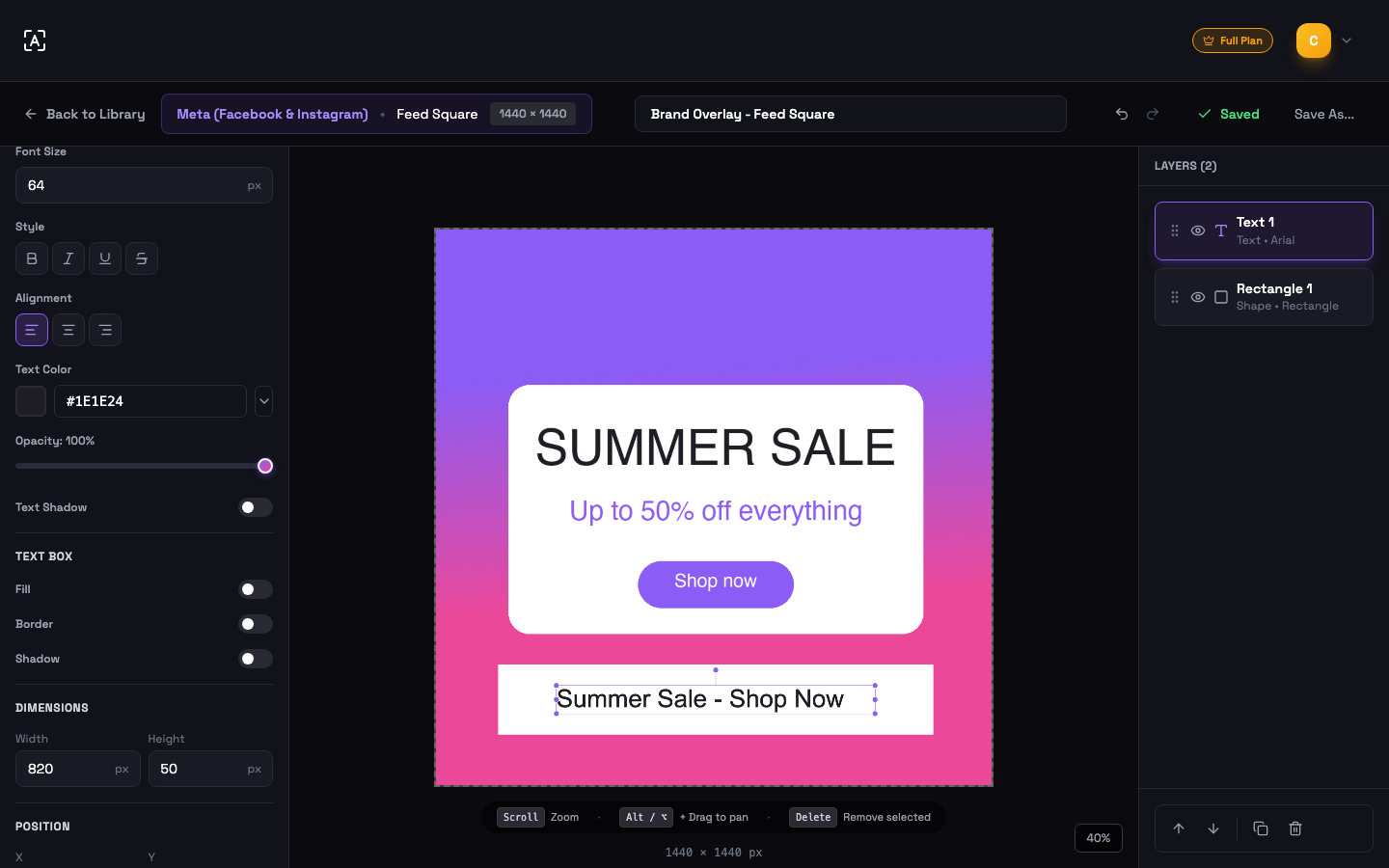
Every color picker in the editors — text color, shape fill, borders — carries your saved palette with it:
- Save up to 6 brand colors to your profile from any editor color picker. They appear in every picker afterwards, in both the image and video overlay editors.
- Recent colors are tracked automatically — your last 8 used colors sit next to the saved palette, no saving required.
- Hex and RGB input — type a hex code or switch the input mode to RGB values.
- Manage Brand Colors — a dedicated modal lists your saved colors and lets you remove the ones you no longer need.
Safe zones
On full-screen vertical placements, the platform’s own interface — profile chrome at the top, CTAs and captions at the bottom — covers parts of your creative. Safe-zone guides show exactly where, per format:
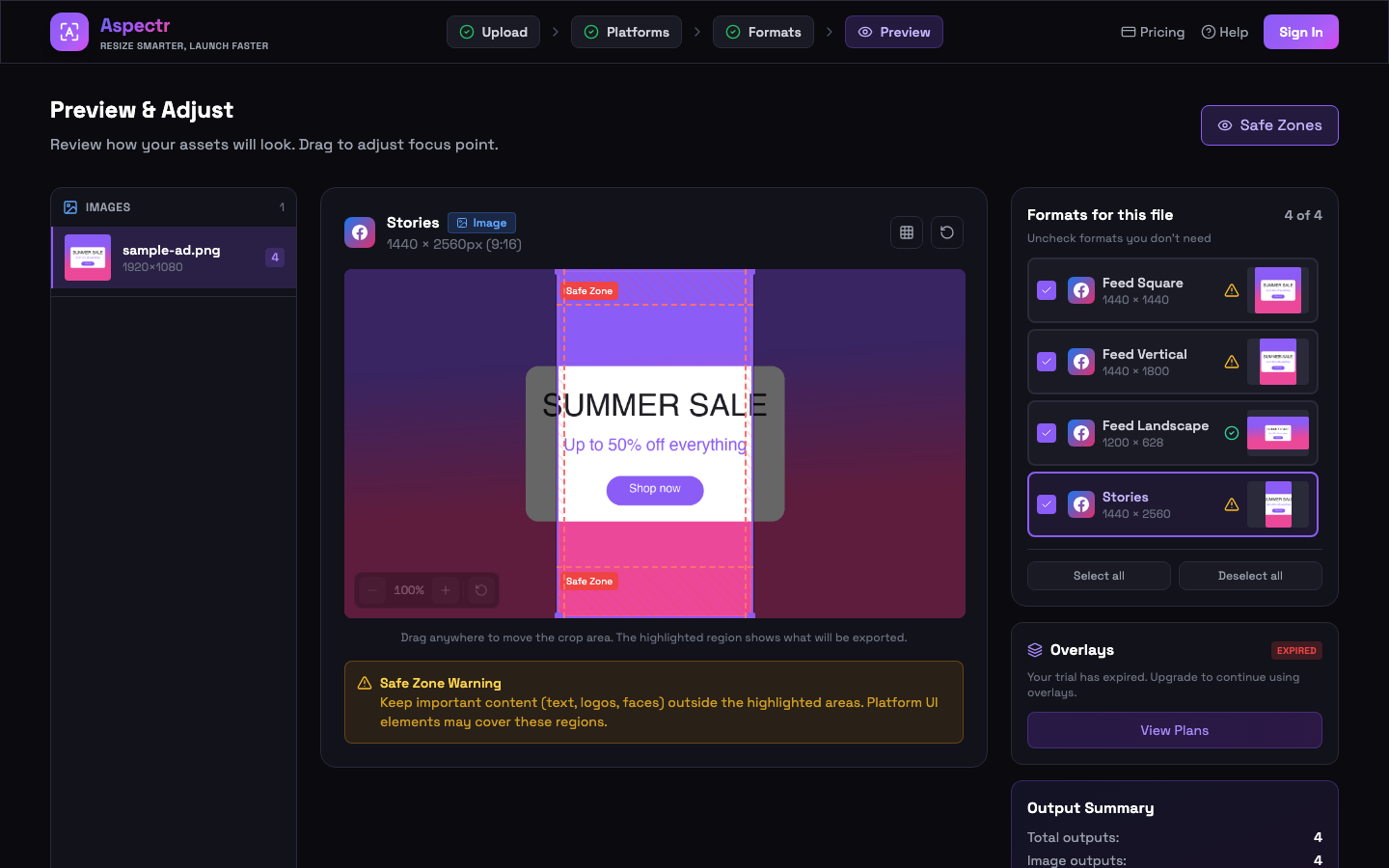
- Toggleable in both editors — the preset editor and the video overlay editor each have a “Show Safe Zones” switch.
- Per-format values — the guides change with the format you are editing, because a Meta Reel and a TikTok in-feed ad reserve different areas.
- Based on official templates — the zones follow each platform’s published safe-zone specs, and only platforms that document safe zones get them.
Where to go next
Brand colors and safe zones are used inside the editors themselves — the Image Overlay Editor guide and the Video Overlay Editor guide cover the full toolset, from text and logos to timeline timing.
Common questions
On your profile — up to 6 saved colors follow your account, so they are available in every color picker across both overlay editors, on any device you sign in from.
Safe zones only exist where the platform itself documents one — mostly full-screen vertical placements like Stories, Reels, and Shorts. Formats without platform-documented safe zones (most feed and banner formats) show none, on purpose.
They follow each platform's official templates and published specs, which platforms update from time to time. Treat them as strong guidance: keep text, logos, and faces out of the highlighted bands and your creative survives the platform UI.
Yes — both editors have a Show Safe Zones toggle, so you can flip the guides on to check placement and off to see the clean creative.