Understanding Your Download: ZIP Structure, File Names, and Re-runs
What lands in your aspectr-export.zip: one folder per platform, the file naming pattern, where images and videos are processed, and how to add formats without re-uploading.
Every export lands as a single ZIP file. This guide explains how that ZIP is organized, how the file names are built, where your files are actually processed, and how to run more formats through the same uploads afterwards.
One ZIP, one folder per platform
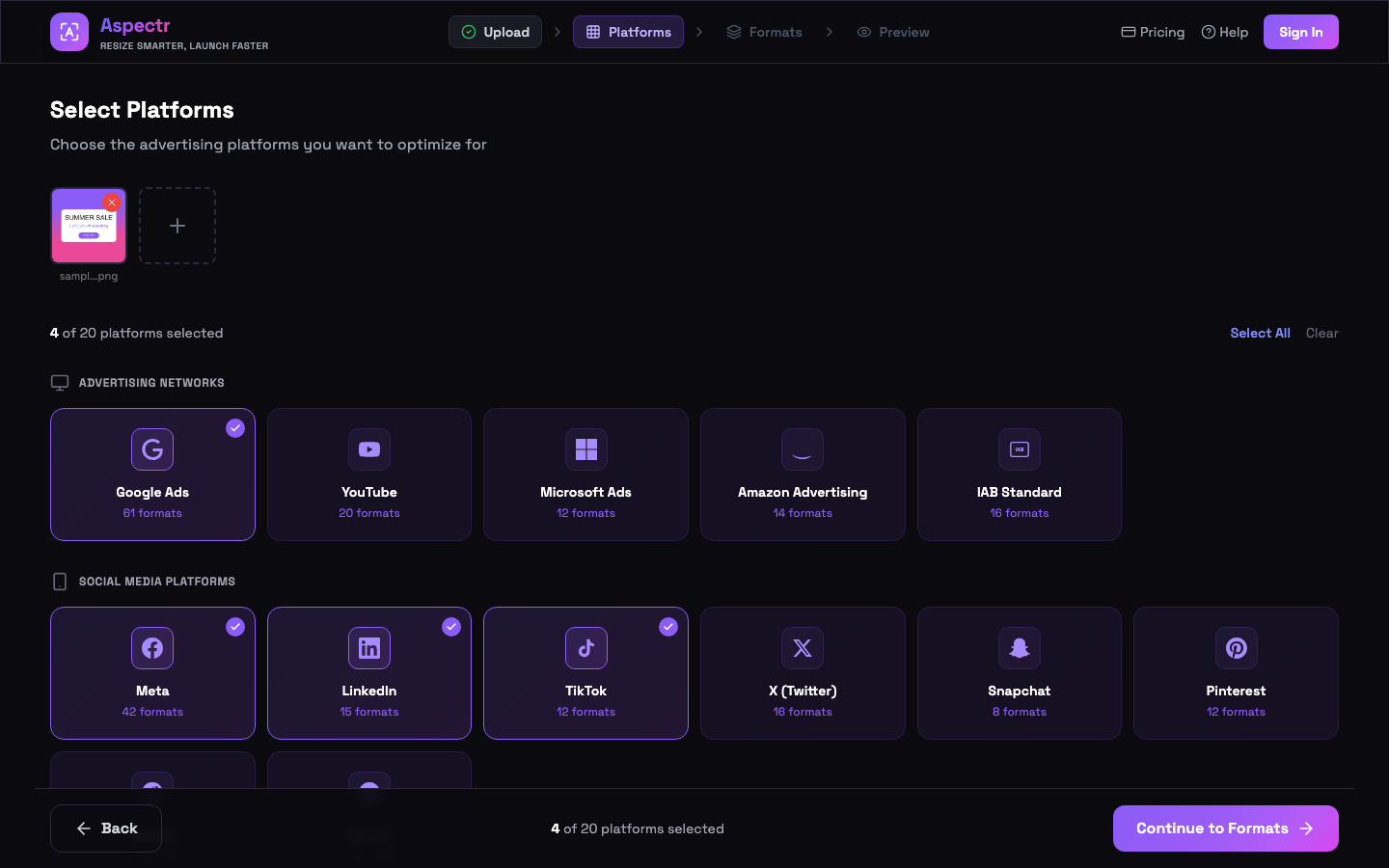
The download is always aspectr-export.zip, and inside it every platform you selected gets its own folder — Meta outputs in one, Google Ads in another, and so on. Outputs generated from custom formats land in a dedicated Custom Formats folder.
How file names are built
Every output follows the same pattern:
<originalname>_<platform>_<format>_<width>x<height>.<ext>
- Original name sanitized — special characters become underscores, so the names are safe on every operating system.
- Capped at 200 characters — if the total would run over, the original-name part is truncated. The platform/format/size suffix is never truncated, so you can always tell outputs apart.
Where processing happens (and the privacy split)
- Images are processed entirely in your browser — they are never uploaded to a server.
- Videos are processed on cloud servers (Transloadit) and automatically deleted within 24 hours.
- Frames extracted from videos download through the image pipeline — the extracted still is treated like any other image output.
What you see while it runs
The processing modal walks through its stages — processing images, processing videos on the server (for video batches), then creating the ZIP archive. When the batch finishes, one of two states appears:
- All Done! — every output succeeded and the ZIP is in your downloads folder.
- Done, with issues — the batch finished but some outputs failed. The screen lists exactly which ones, so nothing fails silently.
After the download: two ways forward
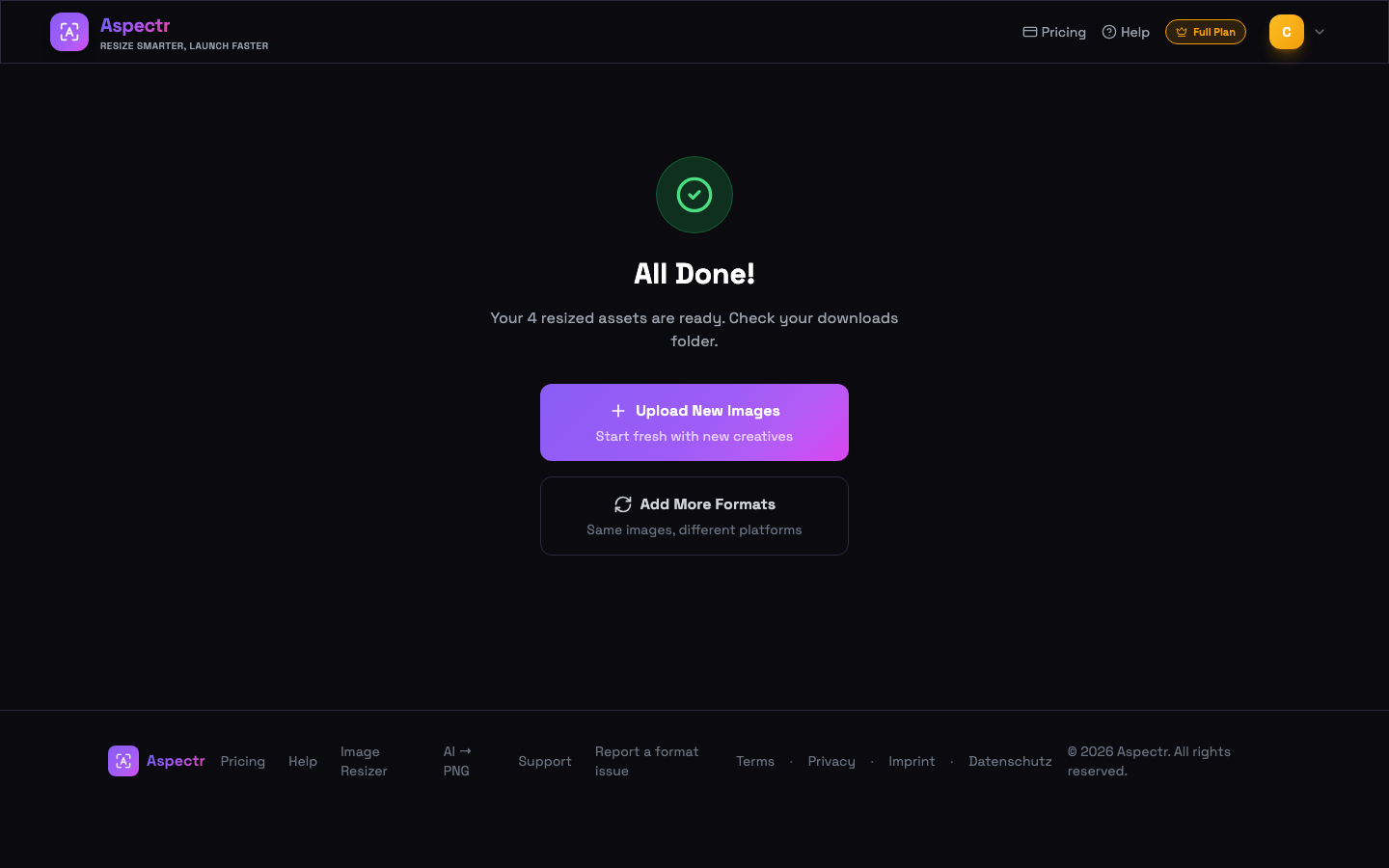
- Upload New Images — starts a fresh batch with new files.
- Add More Formats — re-uses the same uploaded sources for additional platforms and formats, without re-uploading anything. Easy to miss, and a big time-saver when a campaign expands to another channel.
Common questions
The original name is sanitized for cross-platform safety: special characters become underscores, and very long names are truncated so the full file name stays within 200 characters. The platform, format, and size suffix is never truncated — that part always survives intact.
In their own "Custom Formats" folder, alongside the per-platform folders. Everything else is grouped by the platform it belongs to.
Images: no — they are processed entirely in your browser and never leave your machine. Videos: yes — they are processed on cloud servers (Transloadit) and automatically deleted within 24 hours.
The batch finished, but one or more outputs failed. The completion screen lists exactly which outputs had problems instead of failing silently — everything else is in the ZIP as normal.
Yes. On the completion screen, "Add More Formats" re-uses the same uploaded sources for a new round of platforms and formats — no re-upload needed.